모바일 지갑에서 NFT 확인하는 방법
작성자: Alchemy Team
이 튜토리얼에서는 기존에 발행한 NFT를 Mobile Metamask 지갑에서 확인하는 방법을 설명합니다.
예상 소요 시간: 약 3분
또한 저희 NFT 튜토리얼 시리즈의 다른 글들도 확인해보세요:
- 🌟 How to mint an NFT using Web3.js
- 🪄 How to mint an NFT with Ether.js
- 💸 How to set a price on an NFT
- 💻 NFT minter tutorial: How to create a full stack dApp
축하합니다! NFT 튜토리얼 시리즈에서 가장 짧고 간단한 부분에 도달하셨습니다: 방금 발행한 NFT를 가상 지갑에서 확인하는 방법입니다. 이전 두 부분에서 사용했던 Metamask를 이 예제에서도 계속 사용하겠습니다.
사전 준비물로, 모바일에 Metamask가 이미 설치되어 있어야 하며, NFT를 발행한 계정이 포함되어 있어야 합니다 — 앱은 iOS 또는 Android에서 무료로 받을 수 있습니다.
1단계: 네트워크를 Ropsten으로 설정하기
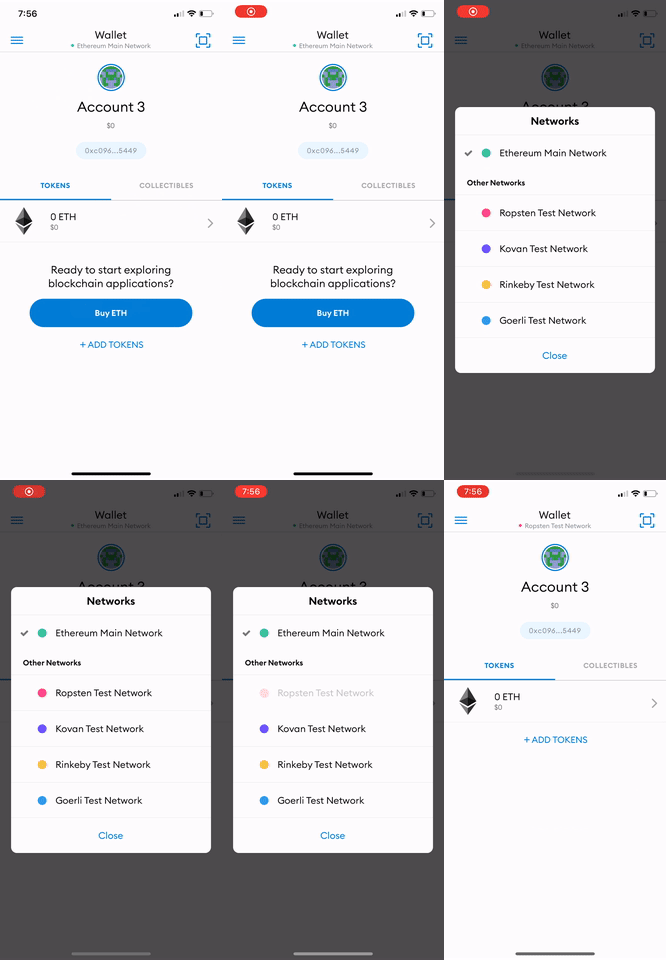
앱 상단에서 "Wallet" 버튼을 누르면 네트워크를 선택하라는 메시지가 표시됩니다. 우리의 NFT는 Ropsten 네트워크에서 발행되었으므로, Ropsten을 네트워크로 선택해야 합니다.
2단계: 컬렉터블을 MetaMask에 추가하기
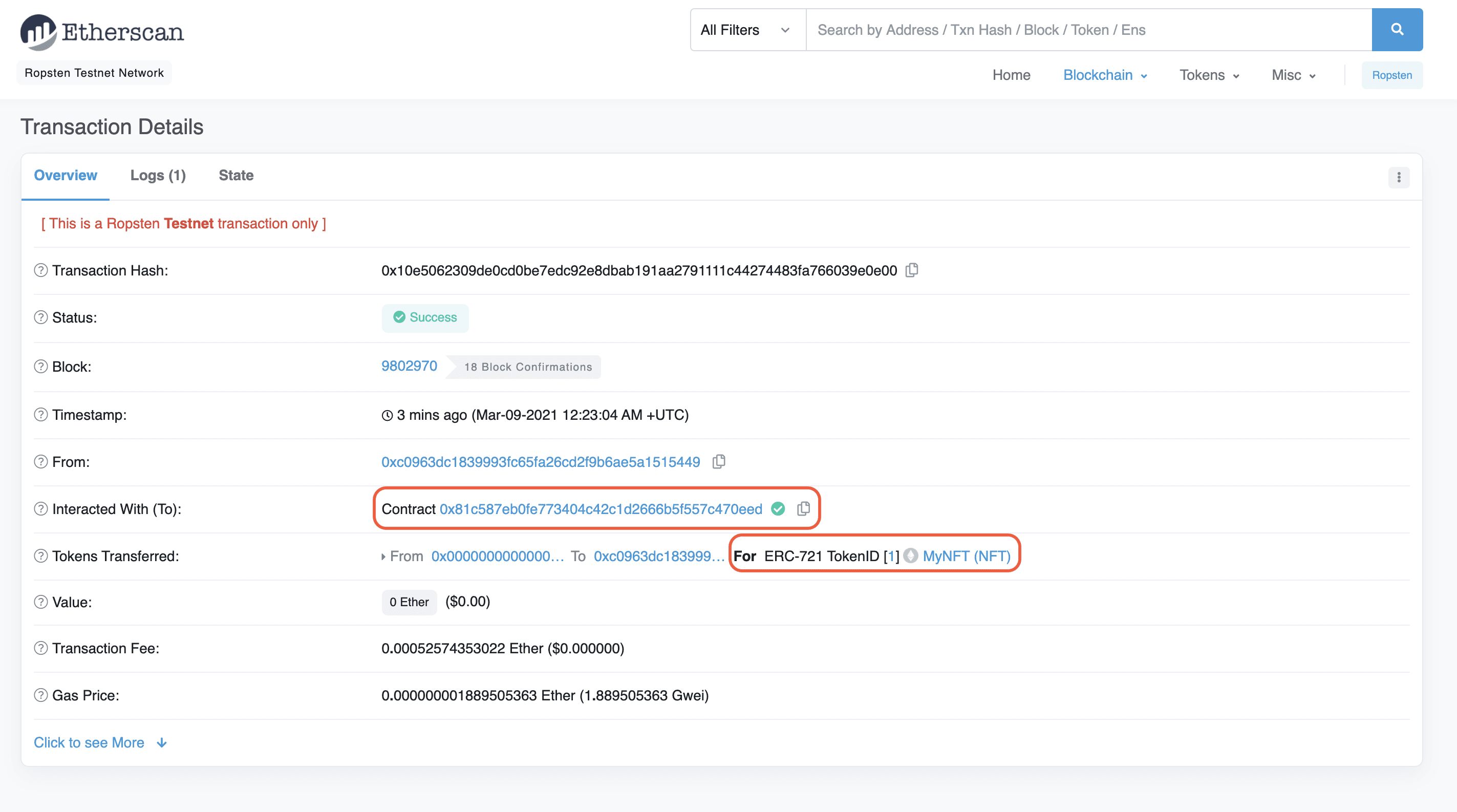
Ropsten 네트워크에 접속한 후, 오른쪽의 "Collectibles" 탭을 선택하고 NFT 스마트 컨트랙트 주소와 NFT의 ID를 추가하세요 — 이 정보는 튜토리얼 Part II에서 발행한 NFT의 트랜잭션 해시를 기반으로 Etherscan에서 찾을 수 있습니다.
NFT를 확인하려면 몇 번 새로고침이 필요할 수 있지만 —결국 나타날 것입니다! 😄
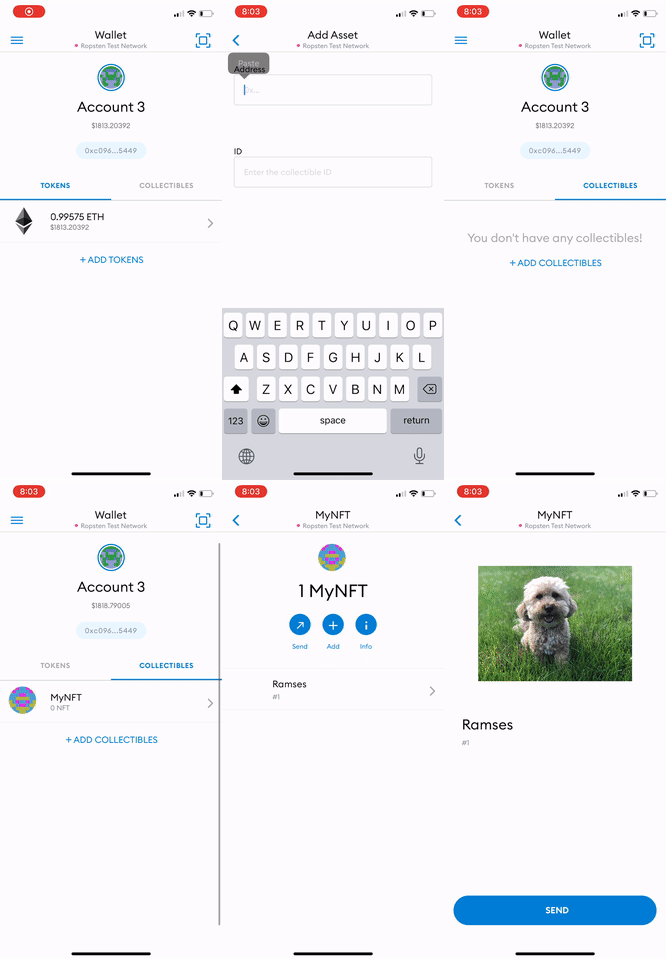
축하합니다! 이제 지갑에서 NFT를 확인할 수 있습니다! 여러분이 NFT 세상을 어떻게 정복해나갈지 기대됩니다! 🎨🪄🧙🤑🎊
Alchemy 뉴스레터
출시 소식을 가장 먼저 받아보세요
뉴스레터 구독하기
Alchemy의 최신 제품 업데이트와 리소스 받기
이메일 주소를 입력하면 마케팅 커뮤니케이션 및 제품 업데이트 수신에 동의하게 됩니다. Alchemy는 저희 개인정보 처리방침에 따라 수집한 정보를 처리합니다. 언제든지 구독을 취소할 수 있습니다.

관련 아티클
Claude Code를 온체인 리서치 에이전트로 전환하기
Alchemy CLI로 Claude Code를 온체인 리서치 에이전트로 전환하세요. 적절한 질문을 통해 토큰 출시, 배포자 지갑, 관리자 키를 추적할 수 있습니다.

Cortex 라우터: 모든 요청에 가장 빠른 정상 노드를 선택하는 방법
요청을 가까운 리전으로 보내는 것은 기본 요건일 뿐입니다. 그 다음, 즉 어떤 노드가 응답할지 선택하는 과정에서 Cortex가 작동합니다.
AI 에이전트를 위한 최고의 블록체인 인프라 (2026)
2026년 AI 에이전트를 위한 최고의 블록체인 인프라 비교: 에이전트 프레임워크, 에이전트에 최적화된 RPC 및 데이터 제공자, 그리고 이들을 연결하는 표준.