

An organization groups your teams in the Alchemy Dashboard. Use it to split work across teams, for example one team per product or environment, while you keep one plan, one invoice, and one place to manage members.
The Dashboard is organized in three levels:
- Organization: billing, usage across all teams, and organization members.
- Team: apps, API keys, team members, security settings, and Activity Log.
- App: the app's metrics, networks, and configuration.
The header shows where you are as Organization > Team > App. Click a level to go to its home page.
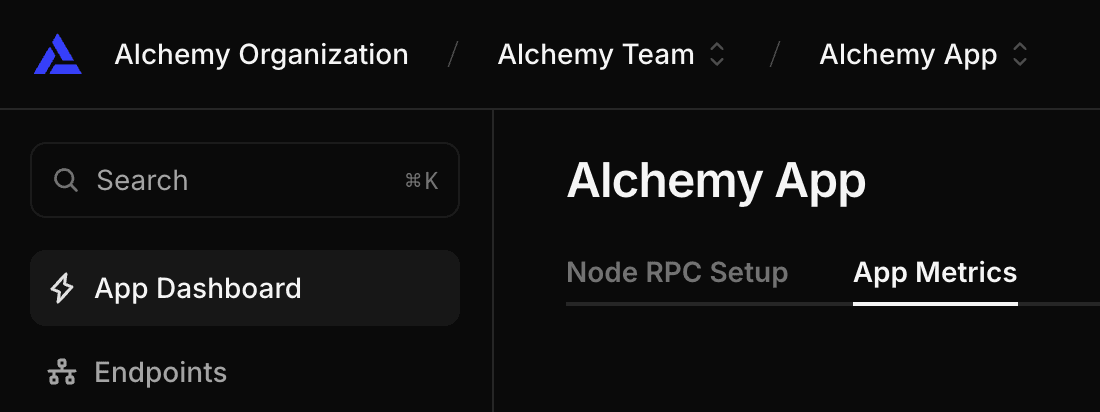
Click the organization name in the header to open the organization pages:
| Page | What it shows |
|---|---|
| Teams | Every team in the organization, with its member count and compute units (CUs) used this month. Click one of your teams to open it. |
| Members | Everyone in the organization, with their organization role and teams. |
| Usage | Usage across every team, and how it splits between teams. |
| Billing | The organization's plan, invoices, payment method, and throughput. |
Teams you are not a member of show on the Teams page as disabled, with You're not a member. Ask an organization Admin to add you to the team.
Every organization member has one organization role:
| Role | Best for | Summary |
|---|---|---|
| Admin | Organization owners | Full access to the organization: create teams, manage members, edit the organization name, and manage billing. Admins are also Admins of every team. |
| Billing | Finance and procurement | Can view and manage the organization's billing. Has no team access unless added to a team. |
| Member | Everyone else | Can view the organization and the teams they belong to. Has no team access unless added to a team. |
| Capability | Admin | Billing | Member |
|---|---|---|---|
| View the organization and its teams | ✓ | ✓ | ✓ |
| View and manage billing, plans, and invoices | ✓ | ✓ | — |
| Create teams | ✓ | — | — |
| Invite, edit, and remove organization members | ✓ | — | — |
| Edit the organization name | ✓ | — | — |
| Admin access to every team | ✓ | — | — |
Organization roles and team roles work together. A member holds the permissions of both roles.
- Organization Admins are Admins of every team. You can't give them a lower role on a single team.
- Billing and Member roles give no access inside a team. Add the member to a team and choose a team role (Admin, Developer, or Viewer) for each team.
- A member can have a different team role in each team. For example, a member can be a Developer in one team and a Viewer in another.
- A member who belongs to no team sees only the organization pages.
With organizations, billing access comes from the organization role. To let a member manage billing, give them the Billing or Admin organization role. The team Billing access setting does not apply.
Organization Admins can create teams from the Teams page.
- Click the organization name in the header.
- Go to Teams.
- Click Create team.
- Enter the team name.
- Click Create team.
The team is usually ready in under a minute. You can close the dialog. The Dashboard tells you when the team is ready.
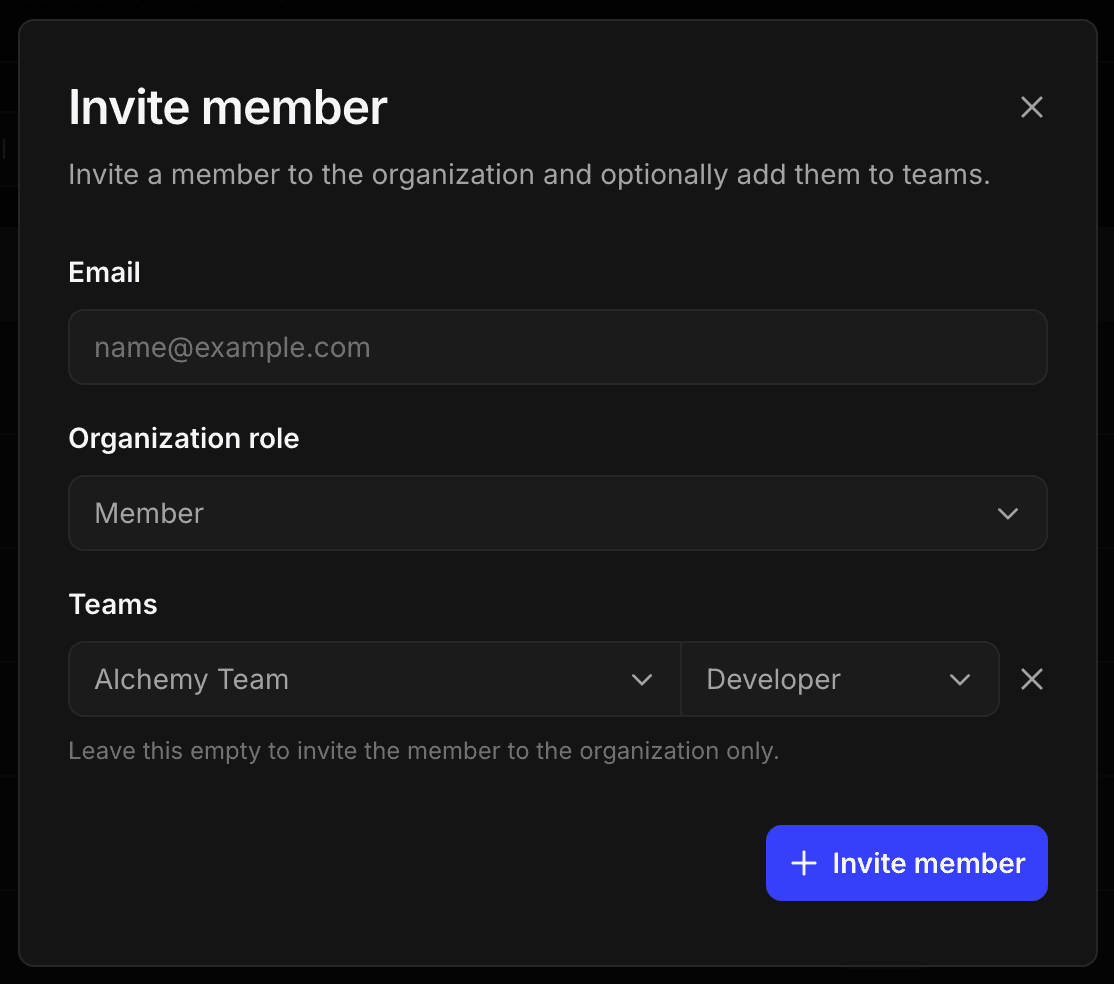
Organization Admins can invite members from the Members page.
- Click the organization name in the header.
- Go to Members.
- Click Invite member.
- Enter the member's email address.
- Select an Organization role.
- If the role is Billing or Member, click Add team for each team the member should join, and select a team role. Leave Teams empty to invite the member to the organization only.
- Click Invite member.
Organization Admins don't need team assignments. They get Admin access to every team.
Organization Admins can change a member's organization role and teams.
- Go to Members.
- Find the member in the table. Search by name or email, or filter by role.
- Click Edit.
- Change the Organization role, or add and remove teams and team roles.
- Click Update member.
To remove a member from the organization, click Remove member in the same dialog and confirm.
When you change an organization Admin to Billing or Member, they keep Admin access to every team at first. The dialog warns you about this. Remove teams or lower their team roles to limit their access.
You can still manage a team's members from that team's Team page. An organization Admin's team role can only change through their organization role.
- You can't change your own organization role.
- You can't remove yourself from the organization.
Ask another organization Admin to make these changes.
When an organization has more than one team, the organization pays for all of its teams:
- One plan, one payment method, and one invoice cover every team.
- Usage from all teams counts toward the organization's plan.
- The Billing link on a team's pages opens the organization's Billing page.
An organization with one team is billed as before. Its billing stays on the team's Billing page.
The organization Usage page shows usage across every team and how much each team used.
You can set limits at two levels:
- Organization limit: applies to all teams together. When the organization reaches it, every team stops.
- Team limit: applies to one team. When a team reaches its limit, only that team stops. The organization limit still applies.
To set limits:
- Go to the organization Usage page, or to a team's Usage page.
- Click Set limit.
- Use the Organization tab for the organization limit.
- Use the Per team tab on the organization page, or the Team tab on a team's page, for team limits.
A team's Usage page also keeps the Per app tab for limits on that team's apps.
Throughput is the number of compute units per second (CU/s) your apps can send. You manage the throughput tier on the organization's Billing page.
Custom throughput limits, such as a higher limit on one network, are set for each team. They aren't copied to the organization's other teams.
When you don't have access to a feature, the Dashboard hides it, disables it with a tooltip, or shows a restricted-access view. For example:
- Billing and Member roles can't create teams or manage organization members.
- Members can't open the organization's Billing page.
- Members can't open teams they don't belong to.
If you need more access, ask an organization Admin.