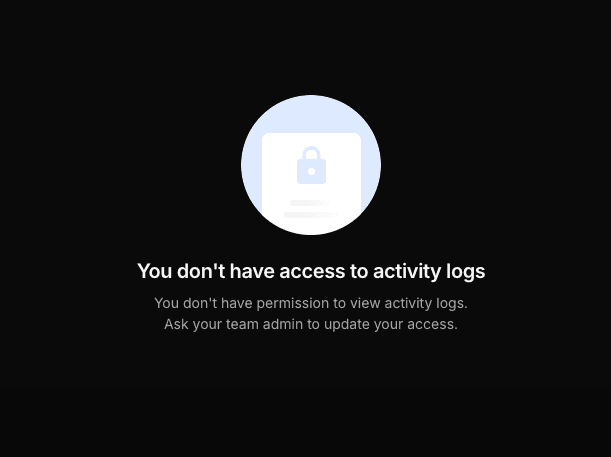
Dashboard roles let your team give each member the right level of access in the Alchemy Dashboard. Team roles control what a member can do across team settings, apps, API keys, webhooks, and activity logs.
Billing access is managed separately from team roles. A member can have any team role and still be granted Billing access when they need to manage billing.
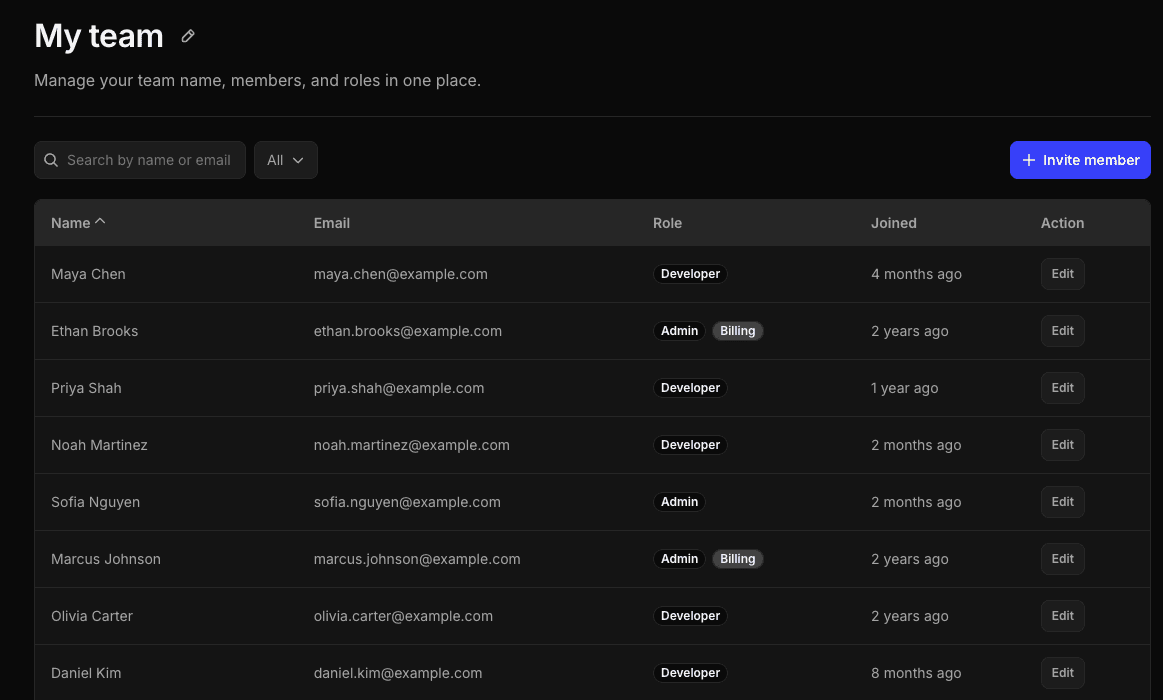
Alchemy supports three team roles:
| Role | Best for | Summary |
|---|---|---|
| Admin | Team owners and administrators | Full dashboard access, including team settings, member management, role assignment, security settings, Activity Log, and all Developer capabilities. Billing access is still a separate setting. |
| Developer | Engineers who build and operate apps | Can create and manage apps, app configuration, app webhooks, app logs, and view unmasked API keys. Can't rotate API keys, manage team members, roles, team security settings, Admin API keys, or Activity Log. |
| Viewer | Teammates who need visibility without write access | Can view team settings, apps, app logs, and app configuration. Can't create, edit, or delete apps, and sensitive API keys are masked. |
| Capability | Admin | Developer | Viewer |
|---|---|---|---|
| View team settings | ✓ | ✓ | ✓ |
| Edit team settings, including team name | ✓ | — | — |
| Invite members and remove members | ✓ | — | — |
| Assign team roles and update Billing access | ✓ | — | — |
| View apps | ✓ | ✓ | ✓ |
| View app logs and app configuration | ✓ | ✓ | ✓ |
| Create apps | ✓ | ✓ | — |
| Edit app configuration, including allowlists and enabled networks | ✓ | ✓ | — |
| Delete apps | ✓ | ✓ | — |
| Manage app webhooks | ✓ | ✓ | — |
| View unmasked API keys | ✓ | ✓ | — |
| Rotate app API keys | ✓ | — | — |
| Manage Admin API access keys and JWT public keys | ✓ | — | — |
| View Activity Log | ✓ | — | — |
| Manage Activity Log webhook subscriptions | ✓ | — | — |
Billing access is not shown in the table because it is not a team role permission. See Billing access.
Billing access controls whether a member can view and manage billing settings in the Dashboard. It is separate from the member's team role.
Members with Billing access can open the Billing page and use billing-related controls such as plan changes, billing settings, invoices, payment details, and usage or spend controls. Members without Billing access see a restricted-access view if they open Billing.
Admins can grant or remove Billing access when they invite a member or edit an existing member. A member with Billing access appears with a Billing badge in the team table.
When you invite or edit members, assigning the Admin role does not automatically grant Billing access. Grant Billing access separately when an Admin, Developer, or Viewer needs billing permissions.
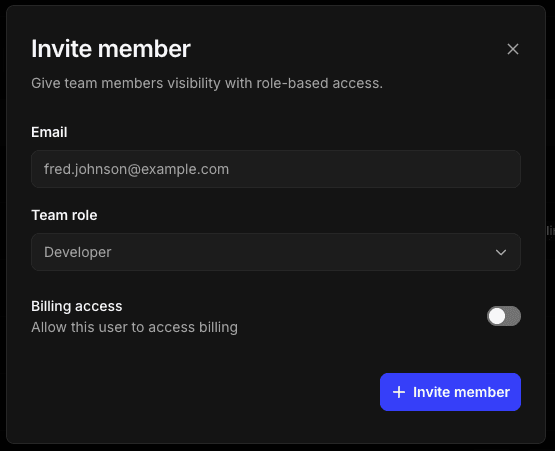
Admins can invite new team members from the Team page.
- Open the Alchemy Dashboard.
- Go to Team.
- Click Invite member.
- Enter the member's email address.
- Select a Team role: Admin, Developer, or Viewer.
- Turn Billing access on if the member should be able to manage billing.
- Click Invite member.
The invited member appears in the team table with an Invited badge until they accept the invitation. Admins can cancel a pending invitation from the same table.
Admins can edit another member's access from the Team page.
- Go to Team.
- Find the member in the table.
- Click Edit.
- Change the member's Team role.
- Turn Billing access on or off.
- Click Update member.
Admins can also remove a member from the edit modal by clicking Remove teammate and confirming the removal.
You can't change your own access. Ask another Admin to update your role or Billing access.
Use the search and role filters at the top of the Team page to find members:
- Search by member name or email.
- Filter by Admin, Developer, or Viewer.
- Filter by Billing to show members with Billing access.
The Dashboard includes safeguards that help prevent accidental lockouts:
- You can't change your own role or Billing access.
- You can't change the role of the last Admin on the team.
- You can't remove Billing access from the last member with Billing access.
If you need to change access for the only Admin or the only member with Billing access, first grant the required access to another trusted teammate.
When you don't have access to a feature, the Dashboard may hide the feature, disable the action with a tooltip, mask sensitive values, or show a restricted-access view.
For example:
- Viewers can see apps and app configuration, but API keys are masked and editing controls are disabled.
- Developers can manage apps and app webhooks, but can't open the Activity Log or manage team members.
- Members without Billing access can't open the Billing page.
If you need access to a restricted feature, ask a team Admin to update your role or Billing access.